Give your AI chatbot a live cloud desktop with box by Simular
Add box to Claude or ChatGPT and your chatbot gets its own computer in the cloud. Ask in plain words, watch the desktop live in the chat, and take control in one tap.
Your chatbot can now do real work on a computer with box by Simular. You watch it happen and take control if needed. Add box to Claude or ChatGPT and your chatbot gets its own computer in the cloud. Ask in plain words, and the desktop shows up live in the chat while it works. One tap to take over.
TL;DR
| What you need | Claude or ChatGPT, plus a box by Simular account. |
| Setup | Add box to your chatbot once. Read the Quick Start. |
| Result | Your chatbot can work on a real desktop, and you see that desktop live in the reply. Tap Take control when you want to click or type yourself. |
What it is
A chatbot on its own can talk, write and answer. With box by Simular, it also gets a computer: a cloud desktop with Chrome, apps and files that it can actually use. It can open a site, look things up and put the results in a spreadsheet, and the desktop stays there for next time, with its logins and files.
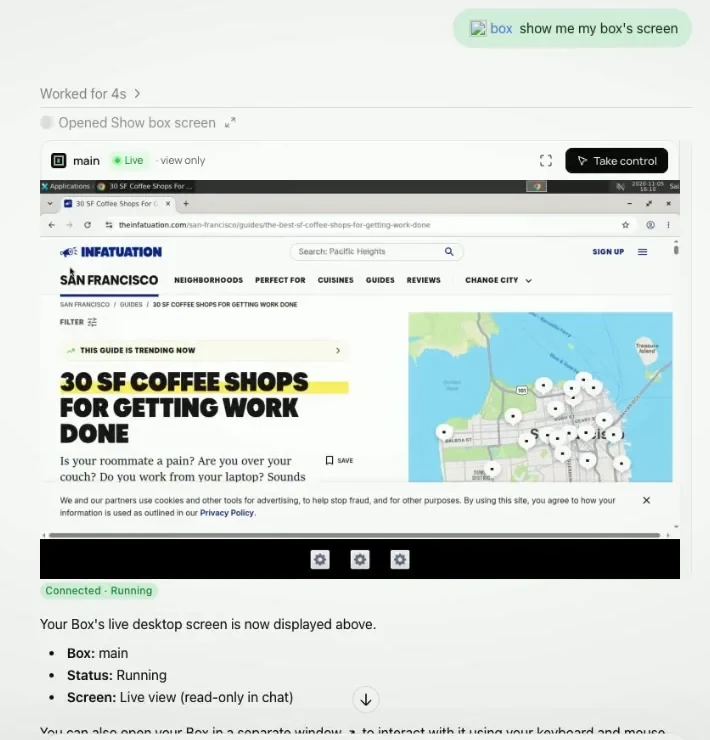
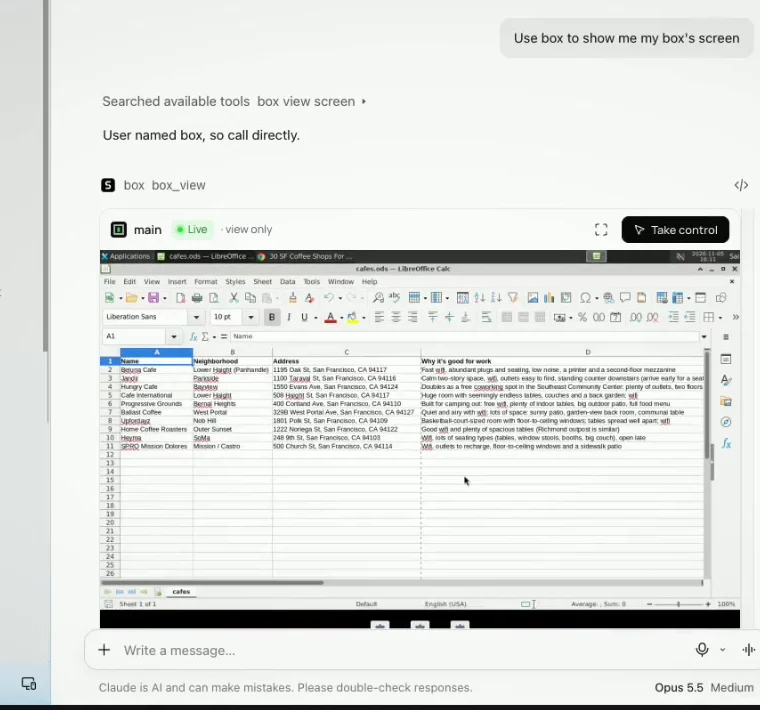
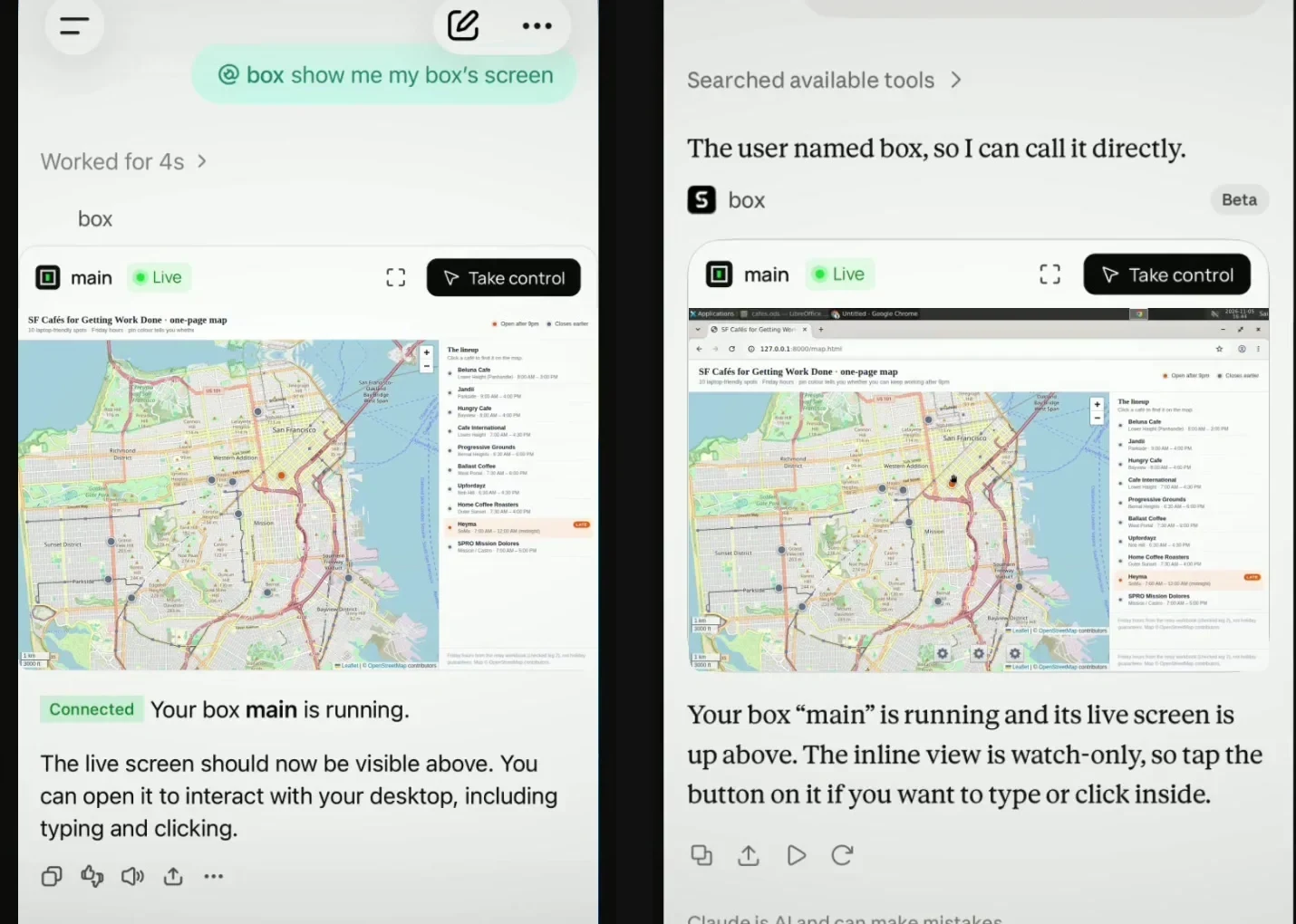
You don't have to take its word for it. Ask to see the box's screen and the desktop appears live right in the reply, so you watch every step as it happens.
The view in the chat is watch-only, so nothing gets clicked by accident. When you want to step in, say to sign in to a site, tap Take control to open the box in full and use your own mouse and keyboard. Tap the full-screen icon if you just want a bigger view.
It works the same in ChatGPT and Claude, on the web, in the Mac apps and on iPhone. In the Claude desktop app, the live view shows in Chat and Code, not in Cowork. Nothing to install on your own computer: the desktop runs in the cloud.
How to do it in Claude
You add box to your chatbot once. After that, one sentence brings up the desktop.
- Add box with the one-tap Add to Claude link, on your phone or your computer. Step by step: read the Quick Start for Claude.
- In any chat, type:
Use box to show me my box's screen
The live view appears in the reply. Tap Take control to type or click inside the box.
How to do it in ChatGPT
- Add box to ChatGPT once. Step by step: read the Quick Start for ChatGPT.
- In a chat, type
@, pick box, and ask:show me my box's screen
Try it with a real task
Give your chatbot something to do on its desktop, then ask to see the screen, and watch the page and the sheet fill in as it goes. For example:
Use box to find a few coffee shops in San Francisco that are good for working, and put them in a spreadsheet on the box.Why box
| Chatbot on its own | Chatbot + box by Simular | |
|---|---|---|
| What it can do | Talk, write and answer | Also work on a real desktop: Chrome, apps, files and a terminal |
| What you see | Text replies | The desktop, live in the reply |
| Stepping in | Not applicable | Take control any time, from web, Mac or iPhone |
| Logins and files | No computer of its own to keep them | Stay on the box for next time, and for any other agent you connect |
FAQ
- Which Claude and ChatGPT plans work? See the Quick Start for what each app needs.
- Can I click inside the view in the chat? No, the view in the chat is watch-only. Tap Take control to open the box and use your mouse and keyboard.
More use cases
Let Claude Code QA your app on a phone screen with box by Simular
Give Claude Code a cloud desktop with Chrome. One prompt and it checks your web app on two phone sizes, marks what's broken, fixes the code and proves it on screen.
Three AIs, one box: hand off work without copy-paste
Claude Code, Codex and DeepSeek work on the same box. Each picks up where the last one stopped, because the files, the open apps and the logins are all on the box.