Let Claude Code QA your app on a phone screen with box by Simular
Give Claude Code a cloud desktop with Chrome. One prompt and it checks your web app on two phone sizes, marks what's broken, fixes the code and proves it on screen.
One prompt: Claude Code opens your app on a cloud desktop from box by Simular, finds what looks broken, fixes the code and shows you the proof.
TL;DR
| You need | Claude Code, a box by Simular account and your web app. |
| Setup | Add box to Claude Code once. Read the Quick Start. |
| You get | In this use case, Claude Code found 3 layout bugs at a 390 px phone width, marked each on screen, fixed them in app/checkout/page.tsx, checked the page again at 390 px and 360 px, and confirmed the existing tests still pass (17 of 17). It took 2 min 10 s. |
What it is
Visual QA means checking a page the way a customer sees it: on a real screen, at a real size, by tapping through it. box by Simular gives Claude Code a cloud desktop with Chrome, so it can open your app at phone width, look at it, use it, and change the code until the page looks right.
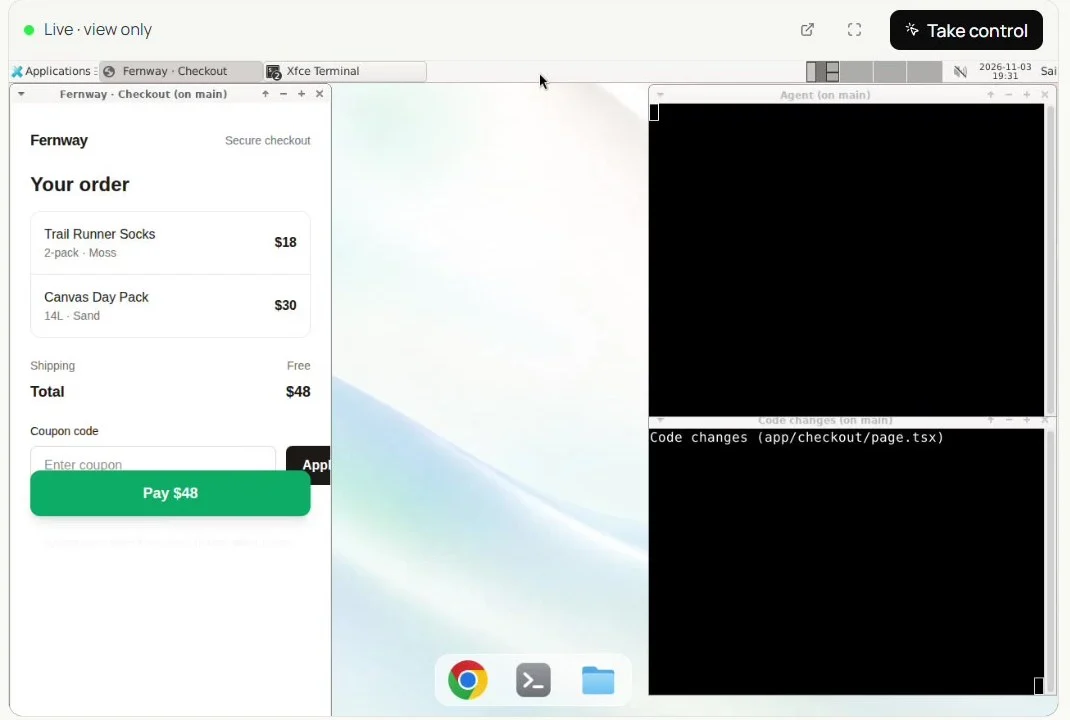
In the demo, the app is a small checkout page called Fernway. At 390 px it had three problems a customer would hit: the Pay button covered the coupon field, the Apply button was cut off, and the terms text was nearly invisible. The screen below is the box's live view before Claude Code started.
How to do it
- Add box to Claude Code. Follow the Quick Start for Claude Code, or let Claude Code follow Install with your AI.
- Put your app on the box. In the demo, the app's code was already on the box and its dev server ran there, so Chrome on the box could open it.
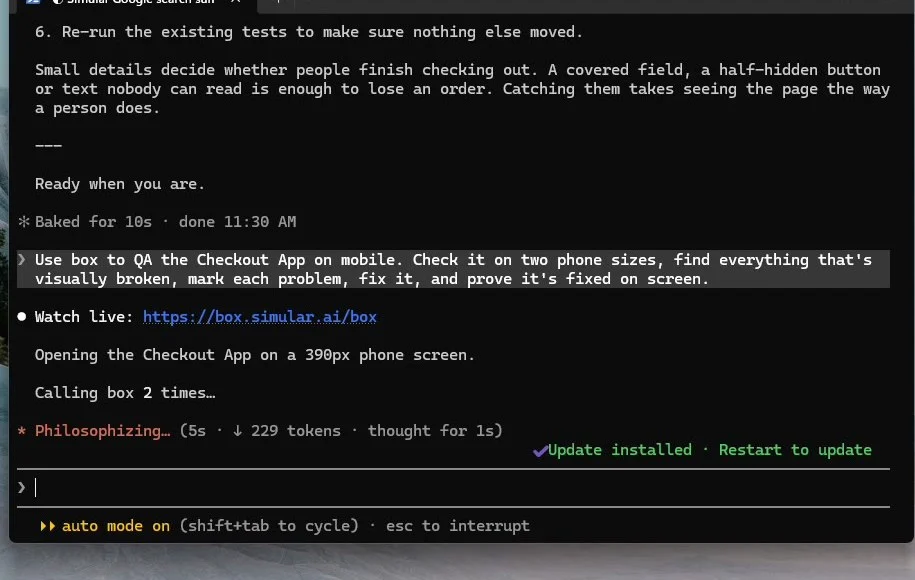
- Send the prompt. Claude Code replies with a live link and starts work. For example:
Use box to QA the Checkout App on mobile. Check it on two phone sizes, find everything that's visually broken, mark each problem, fix it, and prove it's fixed on screen. - Watch it work. Open your box. You see Chrome on the box at phone width as Claude Code works. Click Take control at any time to step in.
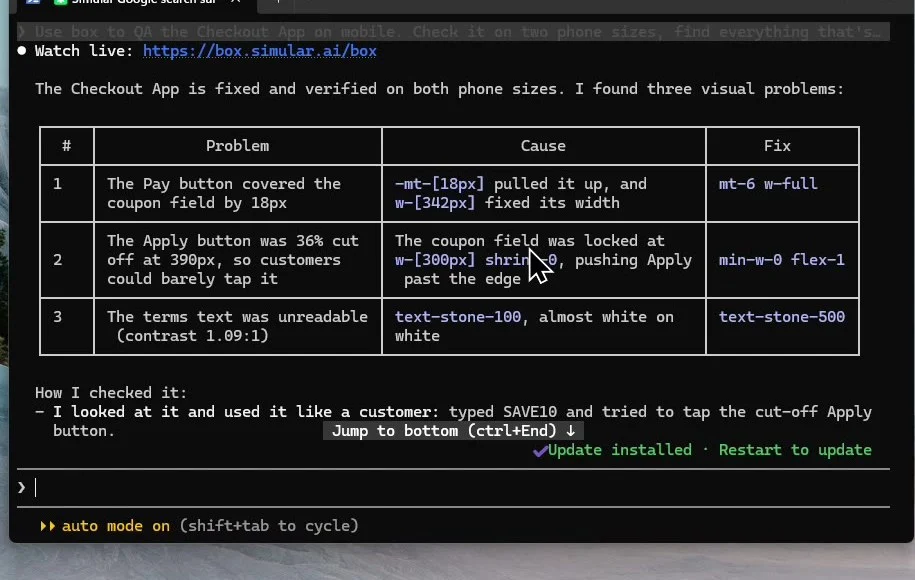
- Read the report and keep the fix. Claude Code ends with a table of each problem, its cause in the code, and the fix, plus how it checked the result.
What Claude Code did
- It typed the coupon SAVE10 and tried to tap the cut-off Apply button, as a customer would.
- It measured the page at 390 px and traced each problem to a line in
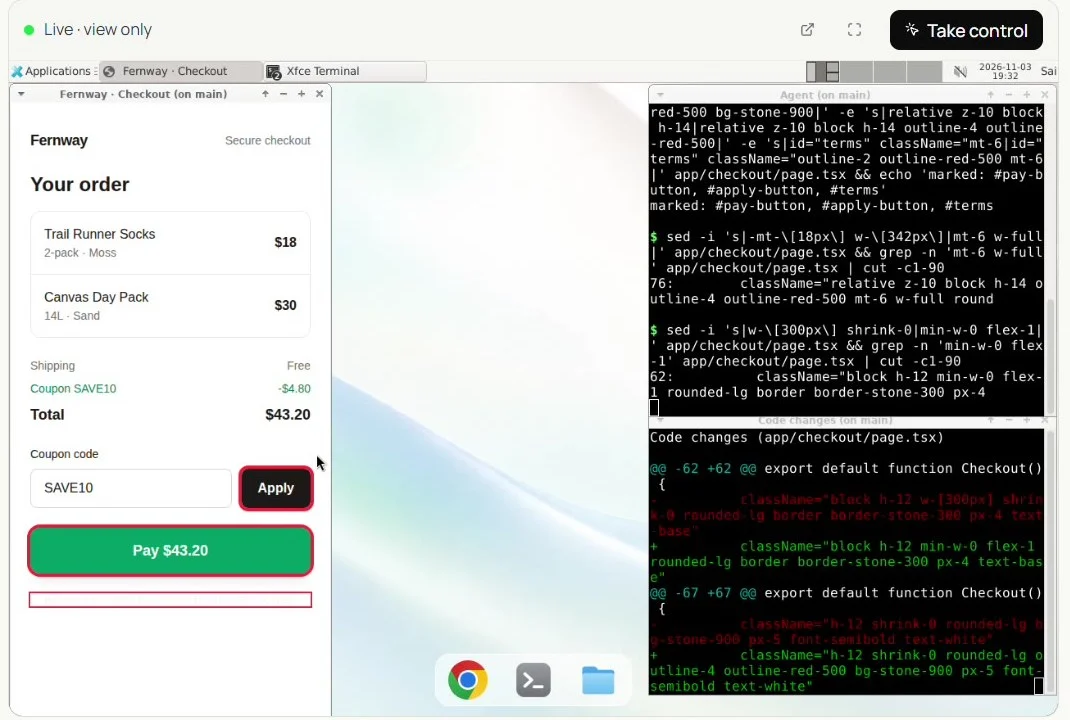
app/checkout/page.tsx. - It marked all three problems in red on screen, then fixed them one at a time and checked after each fix.
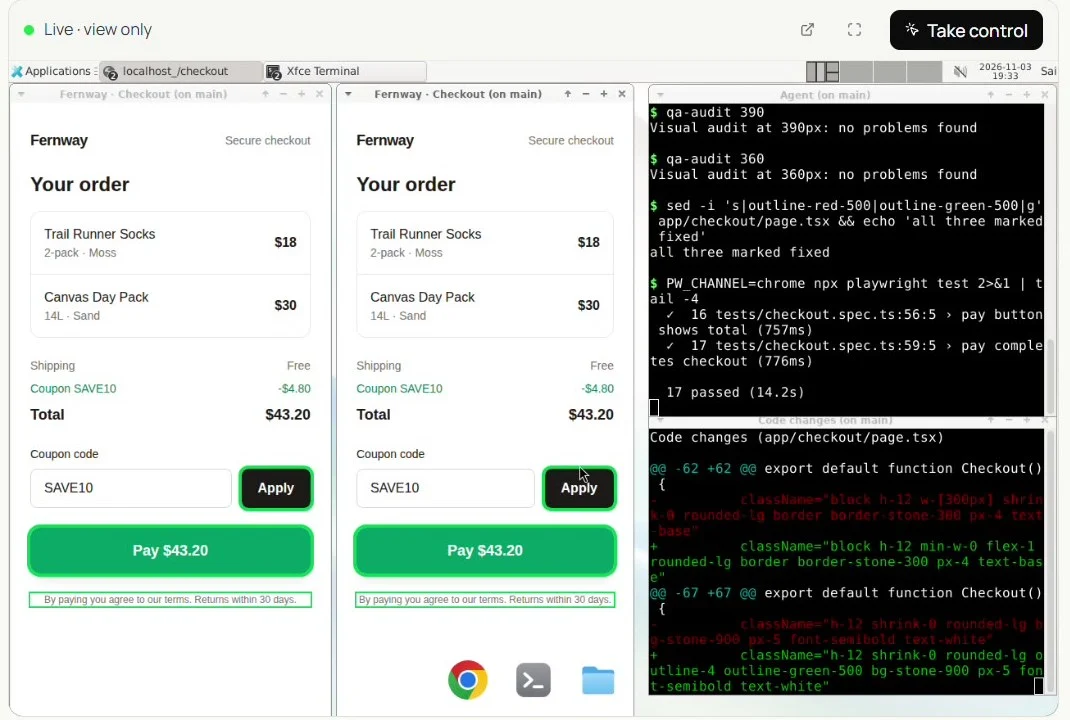
- It opened a second phone width (360 px), turned the markers green on both, and re-ran the existing test suite: 17 passed.
| # | Problem at 390 px | Cause | Fix |
|---|---|---|---|
| 1 | The Pay button covered the coupon field by 18 px | -mt-[18px] pulled it up and w-[342px] fixed its width | mt-6 w-full |
| 2 | The Apply button was 36% cut off | The coupon field was locked at w-[300px] shrink-0 | min-w-0 flex-1 |
| 3 | The terms text was unreadable (contrast 1.09:1) | text-stone-100 on white | text-stone-500 |
Why use box for this
The agent needs a real screen to see layout bugs, and you need to see what it did. box gives Claude Code both, without using your own screen.
| Checking by hand | Claude Code on your laptop | Claude Code + box by Simular | |
|---|---|---|---|
| Sees the page as a customer does | Yes | Only through your own browser or a headless one | Yes: Chrome on a full desktop |
| Several phone widths on screen at once | Resize and repeat | Takes over your screen | Side by side on the box |
| You can watch every step | You are doing the steps | In your terminal | Live view of your box |
| Step in when needed | n/a | Interrupt the agent | Take control in the live view |
| Your own screen stays free | No | No, when it drives a browser | Yes |
| Proof at the end | Your notes | Terminal output | Report table and markers on screen |
FAQ
- Does Claude Code need a special plan? No. Claude Code keeps using your own plan for its model. Model calls made by box's own tools use your account's credits.
- Which phone sizes can it check? Any width you name. The demo used 390 px and 360 px.
- Can I stop it or fix something myself? Yes. Click Take control in the live view, then hand it back.
- Does it replace my test suite? No. It looks at the page the way a person does, then re-runs your existing tests to make sure nothing else broke.
More use cases
Give your AI chatbot a live cloud desktop with box by Simular
Add box to Claude or ChatGPT and your chatbot gets its own computer in the cloud. Ask in plain words, watch the desktop live in the chat, and take control in one tap.
Three AIs, one box: hand off work without copy-paste
Claude Code, Codex and DeepSeek work on the same box. Each picks up where the last one stopped, because the files, the open apps and the logins are all on the box.